Key Takeaways
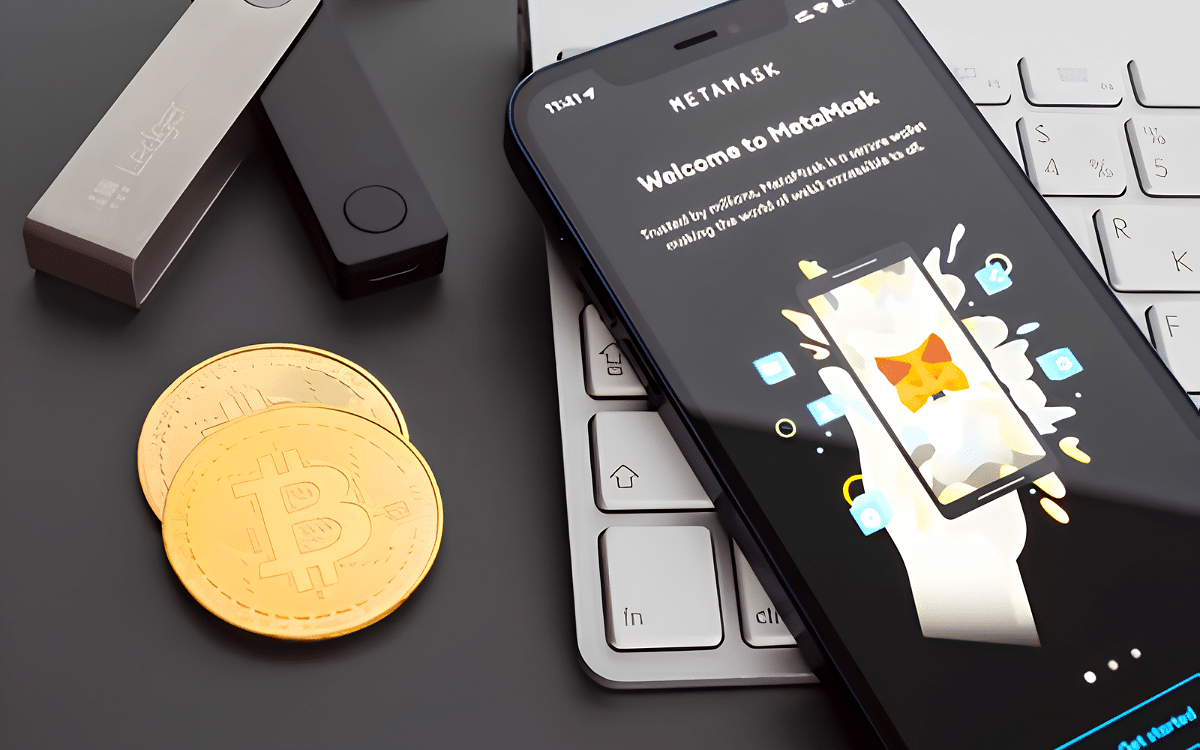
- By linking your Ledger to MetaMask, you will be able to work on supported Ethereum or other EVM networks while keeping your private keys safe on your hardware wallet.
- In terms of functionality, the MetaMask browser extension connects using USB, while the MetaMask Mobile makes use of Bluetooth connectivity via the Ledger Nano X.
- You need an updated Ledger device, Ledger Live, and the Ethereum app before connecting.
- The Ledger will only allow you to complete transactions once you have approved it on its screen.
Linking a Ledger hardware wallet with MetaMask provides you with the ability to interact with supported decentralized applications (dApps), but at the same time, it keeps your private keys secured by the Ledger device. MetaMask provides the platform for managing your accounts and communicating with the dApps, while Ledger performs transaction signing.
You can connect the Ledger Wallet to the MetaMask Extension via USB or use a Ledger device with Bluetooth in order to connect via MetaMask Mobile. How you set it up depends on the Ledger device you are using, as well as the version of MetaMask that you are using.
What You Need
In order to connect your Ledger to MetaMask, you must set up the hardware wallet together with your computer or mobile device and the applications required. Ensure that your Ledger is in working order and has been stored properly. You won’t have to enter your recovery phrase to connect the wallet to MetaMask.
Supported Ledger Models and Apps
MetaMask supports Ledger hardware wallets with the help of its browser extension. Additionally, it is possible to use Ledger Nano X on MetaMask Mobile through a wireless connection using Bluetooth technology.
Regarding the mobile connection, both MetaMask and Ledger provide confirmations about the Ledger Nano X compatibility. Still, Ledger Nano S Plus is not able to provide connectivity via Bluetooth since it has no such feature.
The MetaMask hardware wallet guide indicates that Ledger can be used as a direct connection wallet. On the other hand, various connection options of the connections will depend on how the devices work with the MetaMask application.
Before proceeding, check that:
- Your Ledger device can support the connection method you intend to use.
- MetaMask is both installed and up to date.
- Your computer has Ledger Live installed in order to set up the browser extension properly.
- Your Ledger device has been set up and unlocked.
- The Ledger must have an Ethereum app installed on it.
You need to understand that MetaMask only connects with EVM-based Ledger accounts, whereby compatible Ethereum accounts or supported EVM networks will be accessible through MetaMask.
Updating Firmware and Ledger Live First
Before connecting your device from Ledger to MetaMask, ensure that you have updated the device. Old firmware, old browsers, or old Ethereum apps can all coincide to create hurdles with connecting your devices.
To update the Ledger, you need to launch Ledger Live on your pc. Then you need to plug in the Ledger with the help of a USB. You need to check with Ledger Live whether there is a need for a firmware update. After checking for a firmware update with Ledger Live, you should do the necessary steps.
Following this, My Ledger can be launched from Ledger Live to download/update the Ethereum app on your device. It is essential that the device has the latest version of the firmware and the Ethereum app.
Step by Step: MetaMask Extension
To install MetaMask and link your Ledger hardware wallet, do these:
1. Go to the MetaMask Download Section and Select Browser Extension, Followed by Chrome
2. Press Add to Chrome to Get the MetaMask Extension
3. Click Create a New Wallet and Press Use the Secret Recovery Phrase
4. Create a Password and Click Create Password
5. Since You Will Be Using Ledger, Press Remind Me Later and Click Continue
6. Click Account Settings in MetaMask, Choose Add Wallet, Then Add Hardware Wallet
7. Select Ledger, Click Continue, Then Connect Your Ledger Through the HID Pop-Up
8. Select Your Ledger Account From the List of Connected Devices and Click Unlock
When to Activate Blind Signing, and What Are Its Risks?
Blind signing is a setting on your Ledger that is often necessary when interacting with smart contracts, allowing you to approve transactions even if the device can’t show or verify all transaction information clearly.
You may need it when using some decentralized applications via MetaMask, such as decentralized exchanges or other smart contract applications. To enable it on your Ledger device that supports it:
- Connect and unlock your Ledger.
- Launch the Ethereum app.
- Go to the settings of the app.
- Find Blind Signing.
- Enable it only if necessary for the operation.
Blind signing also involves risks: you may approve operations with transaction information that cannot be easily checked on your wallet, leading to the approval of a malicious or misleading transaction.
Use blind signing only if absolutely necessary. Before confirming the transaction, it is important to check the transaction information and also make sure that the blind signing option is turned off after each transaction has been done with Ledger and MetaMask.
Troubleshooting Connection Errors
Connection issues can happen due to out-of-date software, browser settings and permissions, USB failures, or incorrectly set up equipment.
Before trying out more advanced solutions, make sure that your Ledger is unlocked and running the application for Ethereum and that all used software such as Ledger Live or MetaMask is current.
Device Not Recognized
If you are having some difficulties using MetaMask on your Ledger wallet, please verify that you are sure that you are using a data cable and that the Ledger wallet has been turned ON and the Ethereum application is open.
Ensure that other programs like Ledger Live are shut down when you are connecting the wallet, and make sure that the firmware on your Ledger is updated. Use of Firefox is not recommended in this case, and it is a good idea to try out Chromium-based browsers (like Chrome or Brave).
Ensure that the HID device has the correct permissions in Chrome, reconnect the Ledger wallet, try another USB data cable, or reach out for help to the support teams of Ledger and Mew.
Blocked Transactions
In case your transaction was blocked, make sure to investigate whether you pressed on the Ledger that declined it or if the device was giving you any error.
Many factors might lead to the unsuccessful completion of a transaction; a crowded network, a low network fee, inaccurate information about the transaction, or any problems with the smart contract could result in failure.
Follow these steps:
- View MetaMask for the status of the transaction.
- If it has been denied on your Ledger, check the details of your transaction and resubmit only if you want to make this transaction.
- If a transaction is taking place, it would be good to use a blockchain explorer to monitor its status.
- Make sure that you are using the correct blockchain, as well as the correct account.
- See whether the transaction has enough gas for processing.
- In case the transaction is stuck, review the transaction steps in MetaMask before speeding up or replacing it.
- Avoid signing multiple transactions without verifying the status. You may end up signing unnecessary transactions or confirming actions that you didn’t want to approve.
Frequently Asked Questions
Here are the most commonly asked questions about connecting Ledger to MetaMask.
Are My Funds with Ledger or MetaMask?
Your funds aren’t in the Ledger hardware or MetaMask. They are on the blockchain and can be accessed once you have your private keys. When it is combined with MetaMask, Ledger will only serve as a hardware wallet for signing transactions, while MetaMask will enable viewing the account and the ability to access decentralized applications.
You will need your Ledger wallet to approve transactions made from the wallet connected to your MetaMask account since connecting it does not send your money to MetaMask.
Is there a charge for linking Ledger with MetaMask?
Not at all. Linking your Ledger to MetaMask does not come at a price. However, when it comes to crypto transactions, smart contract utilization, or dApps interaction, some network-related expenses may apply. The cost depends on the blockchain as well as the particular operation.
Is it possible to connect a number of Ledger accounts to MetaMask?
Yes. It is possible to connect different Ledger accounts to MetaMask. During configuration, you should select the needed accounts. All the accounts are connected to the Ledger, so it is obligatory to have the hardware wallet to validate transactions for those accounts.
What would it mean to disconnect Ledger from MetaMask?
Disconnecting Ledger won’t imply that you will be transferring your cryptocurrencies or deleting your blockchain account. Your money stays within the blockchain, and your keys will be kept safely in your Ledger. Therefore, you may plug the device in again whenever you need to make a deal.
More crypto guides: Guides hub · What is cryptocurrency · What is a seed phrase · 7 crypto scams to avoid
Join our growing community
David Lance Constantino
Author
David Lance Constantino is UseTheBitcoin's Editorial Lead and reviews articles before they are published. He has written about crypto for five years, joined UseTheBitcoin in 2025 and has more than 450 articles to his name, mostly on new blockchain projects, token launches, airdrops and market news.